Best AI & Machine Learning Laptops in India (2026) - Tested Picks for Developers
Looking for the best laptop for AI, ML, or local LLM work in 2026? Community-tested recommendations for developers, ML engineers, and data science professionals in India - from cloud-first strategies to agentic AI workflows.
Quick Summary: The Smart Strategy in 2026
The smartest approach is simple:
- • Use cloud GPUs (Colab, Kaggle, RunPod) for heavy training
- • Buy a reliable laptop for coding and experimentation
- • Prioritize RAM and thermals over flashy specs
- • Avoid overspending on "future-proof" hardware
Most AI enthusiasts and pros combine a dependable laptop with cloud services, upgrading RAM when needed rather than chasing the latest GPU.
Common Traps When Buying AI Laptops
These mistakes can waste budget and slow your work months after purchase. Let's get these out of the way first.
Avoid Buying Based on GPU Names Alone
Sustained power and cooling decide real training throughput. Look for VRAM and wattage class instead of just "RTX 5090" stickers.
Avoid Settling for 512GB SSD
Environments, datasets, and checkpoints accumulate faster than you think. 1TB NVMe is your realistic baseline for ML work.
Avoid Ignoring Soldered RAM
Memory limits usually arrive before CPU limits in real workflows. Upgradeable RAM extends laptop lifespan by years.
Check Port Selection Carefully
Dongle dependence adds friction when you connect monitors, external SSDs, and wired networking. Check for USB-C, HDMI, and Thunderbolt.
Prioritize Display Quality
Hours spent reading logs, plots, and code demand good displays. Poor displays cause eye strain and reduce productivity more than slightly slower specs.
Plan Your Training Approach Before Buying
Cloud-first workflows often make a balanced laptop more useful than a heavy GPU brick. Decide where compute happens first.
Agentic Workflows: What Changes When AI Agents Work Together
Agentic workflows explained: Rather than one AI handling everything, multiple specialized agents collaborate - one writes code, another reviews it, a third runs tests. All run simultaneously while coordinating through a central system. This approach gained traction in 2026 for applications ranging from coding assistants to research automation.
RAM Becomes Your Real Bottleneck
Running multiple agents simultaneously changes the requirements. Each agent requires its own context window in memory. Three agents with 8K context each consume 24K tokens in RAM before any actual work begins.
Community feedback is clear: "16GB dies the moment you run more than 2-3 agents". With 32GB, you can run 4-5 agents comfortably before things get choppy. For serious agentic workflows, 64GB is where you want to be.
Reality check: Building or using agentic AI systems requires 32GB RAM minimum, with 64GB preferred. 16GB no longer handles these workloads.
CPU Cores Matter More Now
More agents means more concurrent processes. Each agent operates as a separate process. The CPU must handle context switching between them without performance degradation.
For single-model workflows, 6-8 CPU cores were fine. With agents? "12+ cores is where it stops feeling laggy" according to people running local agent stacks. The coordinator agent especially benefits from having headroom to manage communications between satellite agents.
This setup does not require a Threadripper, yet shifts recommendations toward chips with more cores, such as Ryzen 9, Intel i9, or the higher-core M5 Max variants from Apple.
Local vs Cloud: The Hybrid Approach
Agentic workflows change the calculus on local vs cloud. Instead of running one big model locally, you might run a smaller coordinator agent locally and spin up cloud instances for heavy-lifting agents as needed.
An emerging community pattern: local coordinator plus cloud workers. The laptop runs a lightweight agent that determines tasks, then distributes work to cloud agents on RunPod or similar platforms. This combines local responsiveness with cloud computing power.
The tradeoff involves latency. Every cloud agent call adds round-trip delay. Some workflows handle this well, others find it unacceptable. Finding the right balance requires experimentation.
Thermal Management is Non-Negotiable
Agents run continuously rather than in bursts. Unlike interactive coding with idle time between prompts, agent workflows run at maximum capacity for hours. Gaming laptops with thin designs struggle under these sustained loads.
User reports confirm: "ASUS TUF throttles after 45 minutes of continuous agent runs" and "MacBook Pro maintains performance while gaming laptops downclock". Workstation-class thermal management delivers consistent results.
For agentic workflows as the primary use case, MacBook Pro and ThinkPad workstation laptops justify their higher prices through sustained performance capabilities. These machines handle continuous workloads rather than just short benchmark bursts.
Hardware Recommendations for Agentic Workloads
Building or using agent systems shifts hardware priorities:
Ideal Setup
- • 64GB RAM minimum
- • 12+ CPU cores
- • MacBook Pro M5 Max or ThinkPad/ThinkBook
- • Hybrid: local coordinator + cloud workers
Budget Alternative
- • 32GB RAM (upgradeable later)
- • Accept fewer concurrent agents
- • Gaming laptop with good thermals
- • More dependence on cloud agents
Agentic workflows are still emerging in 2026. These recommendations are based on early adopter experiences. Expect this space to evolve rapidly.
What Matters When Buying
Graphics Card
- RTX 50-series: Latest gen, best for AI
- VRAM: 8GB minimum, 12GB+ preferred
- Look for: RTX 5060, RTX 5070 Ti
- NVIDIA only: CUDA is non-negotiable
Memory
- 2026 minimum: 32GB to be comfortable
- Serious work: 64GB if you can afford it
- Big models: 96-128GB for 13B+ locally
- Upgradeability: Worth it
Processor
- Data prep: More cores helps here
- Compiling: Faster builds with more cores
- Options: Intel i7/i9, AMD Ryzen 7/9
- Sweet spot: 12+ cores for ML
Why GPU VRAM Matters So Much
VRAM determines the model size that runs locally. 8GB handles 7B models adequately. 12GB or more allows comfortable work with 13B models. Larger models require cloud computing or multiple GPUs regardless.
Community advice remains consistent: "Purchase an RTX 4060/4070 class GPU within budget and it performs well for several years". The RTX 50-series improves upon this, but only makes sense when the price difference is reasonable.
Note: For agentic workflows, VRAM matters less than system RAM since these workflows run multiple smaller models instead of one large model.
Why RAM Requirements Have Exploded
32GB serves as the new minimum. Agentic workflows, local LLMs, browser tabs, and IDEs consume memory rapidly. 16GB no longer handles serious AI work in 2026.
For agentic workflows specifically: each agent requires its own context in memory. Running 4-5 agents simultaneously with 8K context each loads 32-40K tokens before actual work begins. "16GB fails when running more than 2-3 agents".
For agentic AI workflows, 64GB RAM provides necessary capacity. For single-model workflows, 32GB performs well.
AI/ML Laptop Spec Tiers (2026)
Use this as your planning tool. Brand names change, but these constraints stay consistent year to year.
| Tier | Who It Fits | RAM | Storage | GPU |
|---|---|---|---|---|
| MINIMUM | Students, cloud-first beginners | 16-24 GB | 512 GB - 1 TB | Integrated or entry RTX if budget allows |
| RECOMMENDED | Most ML engineers, data scientists | 32 GB | 1 TB | Mid RTX for local tests or none for cloud-first |
| PRO | Local training, research, multi-project workflows | 64 GB+ | 2 TB+ | Higher-tier RTX with more VRAM, strong cooling |
Note: You can often "buy down" on GPU if your training runs in the cloud. Cloud-first workflows prioritize RAM, SSD and battery over peak GPU specs.
Cloud vs Local: What Makes Sense
Why Cloud Beats Buying a GPU Laptop
Most discussions miss this point: even users with expensive GPU laptops use cloud for heavy work. Training a modern LLM locally takes hours, and the laptop sounds like a jet engine the whole time. The community consensus: "You will use Kaggle or Colab anyway, why spend ₹2 lakh upfront?"
Cloud platforms give you access to A100s and H100s - GPUs that cost more than your entire laptop - and you only pay for what you use. No cooling problems, no noise, no wondering if your model will fit in VRAM. You spin up a Jupyter notebook, do your thing, and shut it down.
The math works out clearly: Colab Pro costs about ₹700-900/month, totaling ₹8,400-10,800 per year. Compare this to spending ₹2-3 lakh on a laptop worth half that amount in two years. For learning and experimentation, cloud computing proves more cost-effective.
Read more: Best cloud platforms for AI/ML in India - full comparison with pricing
The Cloud Platforms People Use
Colab and Kaggle dominate the conversation, yet a broader ecosystem exists. These platforms deserve attention:
Google Colab
Free tier with T4 GPUs, Pro gets you A100 access. Great for Jupyter workflows, ₹700-900/month in India.
Best for: Learning, experimentsKaggle
Free GPU/TPU access, integrated with competitions. Good for datasets and sharing notebooks.
Best for: Competitions, free accessGitHub Codespaces
VS Code in your browser with GPU options. Free hours monthly, integrates with your repos. Part of Student Developer Pack.
Best for: Dev workflows, studentsRunPod
Rent GPUs by the hour. Cheaper than Colab for sustained use, lots of GPU options including H100s.
Best for: Serious projects, cost controlVast.ai
GPU marketplace, often cheapest option. Rent from people with idle GPUs. Hit-or-miss quality but great prices.
Best for: Budget-conscious usersPaperspace/Gradient
Beginner-friendly cloud with good free tier. Clean UI, persistent storage, decent GPU options.
Best for: Beginners, persistenceIndia-specific: Colab and Kaggle work seamlessly with Indian payments. RunPod accepts cards though some users report transaction problems. Vast.ai delivers mixed experiences. GitHub Codespaces works smoothly for those already in the GitHub ecosystem.
Future-Proofing is Mostly a Myth
Hardware purchased today feels slow within 4-5 years. This pattern remains consistent across technology. Rather than attempting to future-proof with expensive hardware, choose something adequate for coding and use cloud resources when additional power becomes necessary.
When new GPUs launch, cloud providers add them immediately. Laptops cannot match this upgrade cycle. Rather than worrying whether RTX 5060 will suffice in 2028, focus on learning ML. Skills transfer across hardware generations; hardware does not.
Getting Started in India
Starting AI/ML requires no high-end laptop. Any computer with a browser can access Colab, Kaggle, or GitHub Codespaces for serious GPU power at minimal cost. Learning on a ₹40,000 laptop works well.
Kaggle provides free GPU/TPU time. Colab offers a solid free tier and Pro remains affordable even for students. GitHub Codespaces integrates with existing repositories. Compare this to spending ₹2-3 lakh upfront for a future-proof machine. For those starting out or managing a tight budget, cloud computing makes financial sense.
What Changed in 2026
A few things keep showing up in conversations about AI hardware this year, including some newer concerns around agentic AI workflows:
RTX 50-series is worth the upgrade
When buying a GPU laptop, the new RTX 50-series cards perform noticeably faster for AI work. Better tensor cores and more VRAM make the upgrade worthwhile if the price difference is reasonable.
16GB RAM falls short in 2026
Between Windows 11, Chrome, and the AI tools running in the background, 16GB fills up fast. 32GB serves as the new minimum for avoiding constant tab closures.
MacBook and ThinkPad still dominate
When discussing laptops that last 5+ years, these two brands dominate the conversation. Gaming laptops list better specs on paper, but the build quality and support fall short.
M5 Max MacBook is portable power
For those who work from cafes and prioritize battery life, the M5 Max with 128GB RAM has no competition. Expensive, but unmatched in its category.
Agentic workflows need more RAM
Running multiple AI agents simultaneously? 32GB minimum, 64GB preferred. Each agent needs its own context in memory.
Quick Answer: Top 11 Picks
Which AI/ML Scenario Matches You?
Your laptop choice depends on WHERE compute happens. Pick your scenario below to see what matters for your workflow.
Local Deep Learning Training
You run PyTorch/TensorFlow training locally, fine-tune models, or need sustained GPU performance.
Prioritize: NVIDIA RTX GPU, VRAM, cooling, sustained power
Trade-off: Heavy, loud, expensive
Data Science Heavy, Model Light
You spend time in notebooks, SQL, visualization, and feature engineering.
Prioritize: RAM, SSD capacity, screen quality, keyboard comfort
GPU: Nice to have, not critical
Cloud-First ML Engineer
You build containers, run experiments remotely, manage pipelines on cloud platforms.
Prioritize: RAM, SSD, battery life, ports, stability
GPU: Entry RTX for quick tests, or skip entirely
Student & Early-Career Builder
Learning frameworks, running smaller projects, joining internships.
Prioritize: Value, upgradeability, longevity
Strategy: Start with cloud, upgrade hardware as you grow
Best Laptops for AI & ML in India (2026)
Now that you understand what matters - RAM for agentic workflows, cloud vs local strategy, avoiding common traps - here are the laptops that actually deliver on these requirements in India. Each recommendation below maps back to the principles we just covered: thermal management for sustained workloads, upgradeability for longevity, and the right balance of specs for real AI/ML workflows.
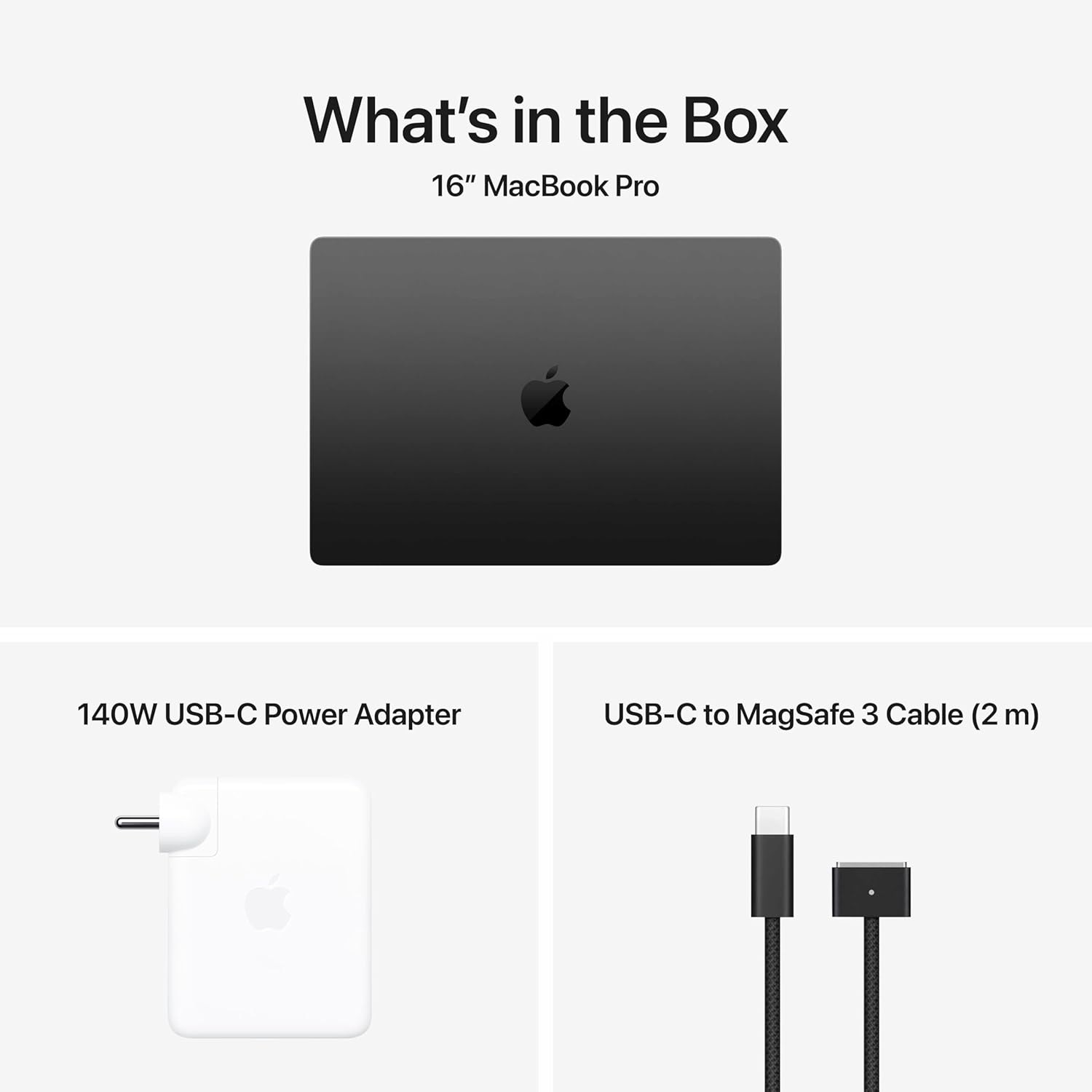
Apple MacBook Pro 16 M5 Max
Best for AI researchers and ML engineers who need portability and battery life
Want to work from cafes without carrying a heavy laptop? The MacBook Pro M5 Max with 128GB RAM fits the bill. You get desktop-class performance, a great screen, and battery that lasts through a full day of coding.
The 128GB unified memory is what makes this laptop special - you can run multiple LLMs at once without your machine slowing down. M5 Max handles inference tasks well, and macOS gives you a proper Unix environment without any setup headaches.
Best For
- • AI researchers
- • ML engineers
- • Local LLM workflows
- • Agentic AI systems
Key Specs
- • M5 Max (16-core CPU, 40-core GPU)
- • 128GB Unified Memory
- • 16.2" Liquid Retina XDR display
- • 22-hour real-world battery
Pros
- • Exceptional battery life
- • Massive unified memory
- • Silent, cool operation
- • Native Unix environment
Cons
- • Expensive at ₹3,19,900
- • No CUDA support
- • Non-upgradeable RAM/storage
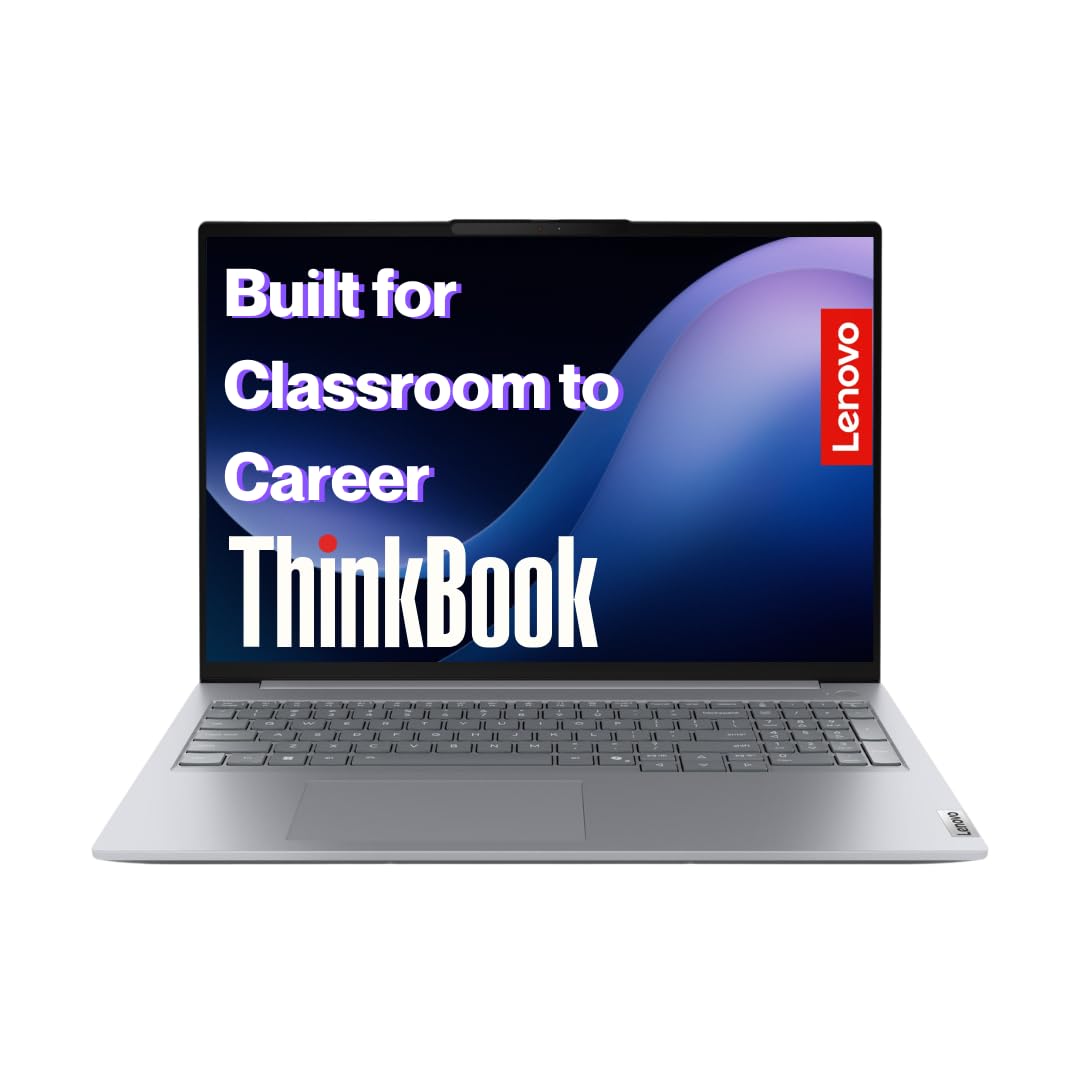
Lenovo ThinkBook P16
Best for Python developers and data analysts who want reliability without the workstation price
The Lenovo ThinkBook P16 balances ThinkPad-level reliability with a mid-range price. It includes the Intel Ultra 9 chip, an NPU for AI tasks, and weighs 1.7kg. Solid value for under ₹1 lakh.
The 16GB RAM is upgradable to 64GB, which matters more than the base configuration. Linux works well, the keyboard is comfortable for long coding sessions, and finding drivers is straightforward.
Best For
- • Python developers
- • Data analysts
- • Students learning ML
- • Cloud-first workflows
Key Specs
- • Intel Core Ultra 9 185H
- • 16GB DDR5 (up to 64GB)
- • Intel Arc + AI NPU
- • 1.7kg weight
Pros
- • Great value under ₹1 lakh
- • Upgradeable RAM to 64GB
- • Strong Linux support
- • Lightweight for portability
Cons
- • No dedicated NVIDIA GPU
- • 41Wh battery is small
- • Not ideal for GPU training
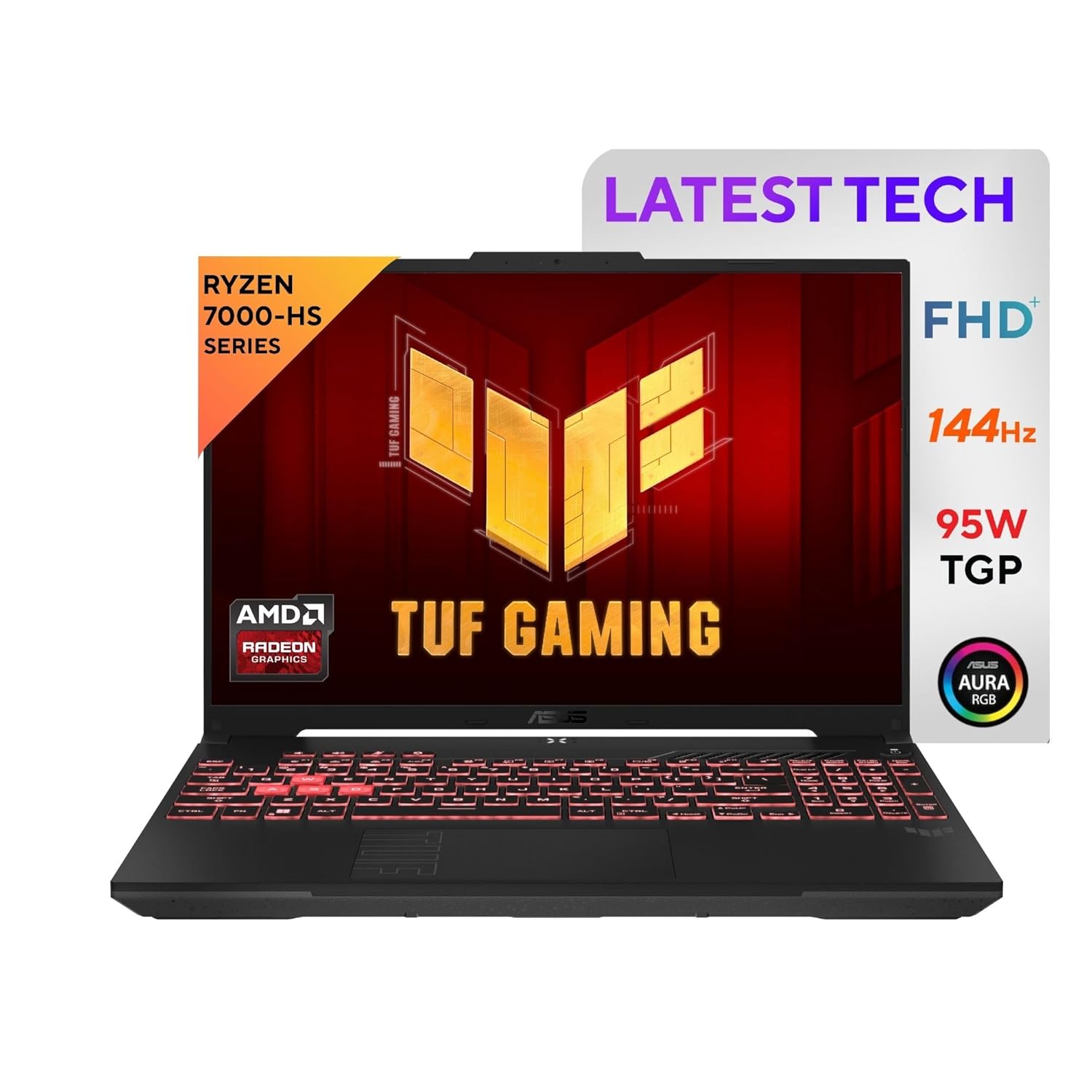
ASUS TUF A16 Ryzen 7
Best for budget-conscious ML developers who need CUDA acceleration
The ASUS TUF A16 makes sense when you need a GPU laptop but the MacBook is out of budget. It comes with the RTX 5060 with CUDA support, 32GB RAM, and stays cool during long training sessions. The tradeoff is build quality to get these specs at this price.
This is the budget option, not because it performs poorly, but because it lacks the reliability track record of MacBook or ThinkPad. If that tradeoff works for the RTX 5060 and the price, this handles the work.
Best For
- • Budget ML developers
- • Students learning deep learning
- • CUDA-based workflows
- • Local model fine-tuning
Key Specs
- • AMD Ryzen 9 7940HX
- • RTX 5060 8GB GPU
- • 32GB DDR5 RAM
- • 90Wh battery
Pros
- • RTX 5060 at great price
- • Upgradeable to 64GB RAM
- • Excellent thermal performance
- • Strong Linux support
Cons
- • Heavy at 2.5kg
- • Gaming aesthetic
- • Lower reliability than MacBook/ThinkPad
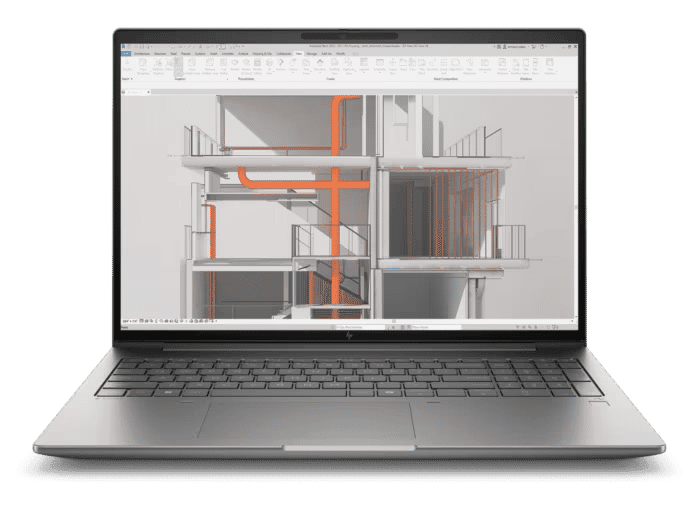
HP ZBook Studio 16 G10
Best for enterprise teams and professionals who need certified reliability
The HP ZBook Studio 16 targets professionals with company budgets. This workstation carries ISV certification, meaning it has been tested to work reliably with professional software. The RTX 2000 Ada GPU prioritizes stability over raw speed, which matters more in professional environments.
The 16" OLED screen looks excellent for data visualization work, and HP workstation support ensures help is available when problems arise. This targets professionals who need their machine to work reliably every single time.
Best For
- • Enterprise AI teams
- • Researchers
- • Professional ML deployment
- • Data visualization work
Key Specs
- • Intel Core i9-13900H
- • RTX 2000 Ada 8GB
- • 32GB DDR5 RAM
- • 16" OLED 4K display
Pros
- • ISV-certified reliability
- • Professional GPU drivers
- • Excellent OLED display
- • Upgradeable components
Cons
- • Expensive at ₹2,15,000
- • Heavy at 2.1kg
- • Overkill for most users
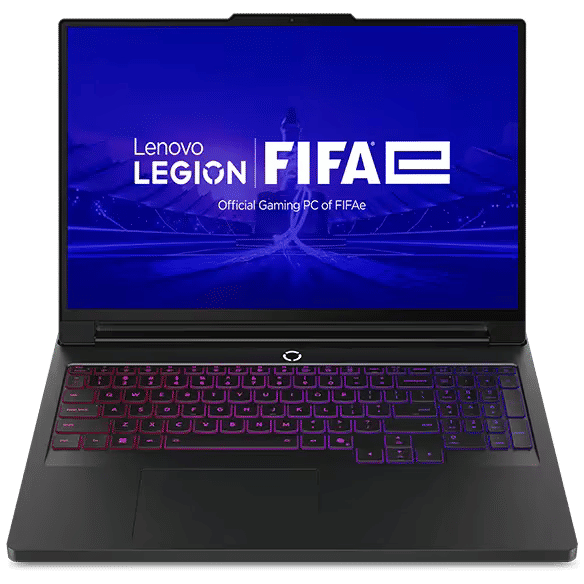
Lenovo Legion Pro 7i Gen 10
Best for serious local training with RTX 5090 and 24GB VRAM
The Lenovo Legion Pro 7i Gen 10 targets serious ML practitioners who need local training power. The RTX 5090 with 24GB VRAM handles large models and datasets that would choke lesser GPUs. With 64GB RAM upgradeable to 128GB, this machine scales with your projects.
Lenovo's Coldfront cooling system manages the thermal output during extended training sessions. The professional aesthetic works in most environments, though the 330W power adapter limits portability.
Best For
- • Serious local ML training
- • Large language model fine-tuning
- • GPU-intensive research
- • Multi-GPU cloud replacement
Key Specs
- • Intel Core i9-14900HX
- • RTX 5090 24GB GPU
- • 64GB DDR5 RAM
- • 99.9Wh battery
Pros
- • RTX 5090 with 24GB VRAM
- • Upgradeable to 128GB RAM
- • Excellent thermal management
- • Great Linux support
Cons
- • Very expensive at ₹2,89,990
- • Heavy at 2.7kg with adapter
- • 330W adapter is massive
MacBook Air M4 (2025)
Best for cloud-first workflows on a budget
The MacBook Air M4 makes cloud-first workflows accessible. With 24GB unified memory and the M4 chip, this handles local inference and development work while relying on cloud platforms like Colab and Kaggle for heavy training.
The fanless design means silent operation, and 18-hour battery life lasts through full workdays. At 1.24kg, this works perfectly from cafes and coworking spaces. Ideal for students and professionals who don't need local GPU power.
Best For
- • Cloud-first ML workflows
- • Students and beginners
- • Remote developers
- • Budget-conscious professionals
Key Specs
- • Apple M4 (10-core CPU)
- • 24GB Unified Memory
- • 13.6" Liquid Retina
- • 52.6Wh battery
Pros
- • Perfect for cloud workflows
- • Excellent battery (18 hours)
- • Lightweight at 1.24kg
- • Silent fanless design
Cons
- • No CUDA support
- • Limited to 24GB memory
- • Non-upgradeable
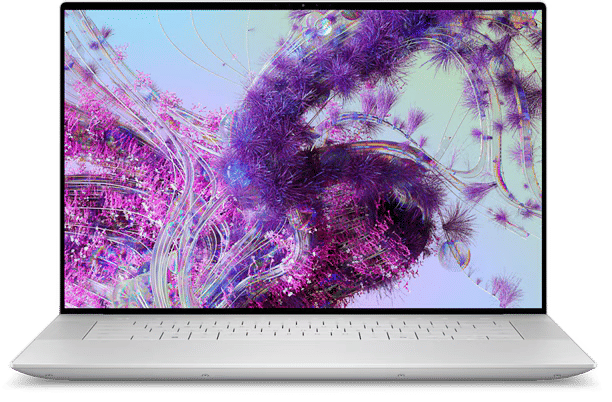
Dell XPS 16 (9640)
Best for data visualization and design-conscious professionals
The Dell XPS 16 (9640) delivers one of the best displays available for data work. The 16" OLED panel provides excellent color accuracy and contrast for visualizations, while the compact design fits professional environments.
This laptop targets professionals who spend hours analyzing data and need a display that reduces eye strain. The RTX 4070 handles moderate ML workloads, but the soldered RAM and premium price position this as a specialist tool for data visualization experts.
Best For
- • Data visualization professionals
- • Design-conscious users
- • Office environments
- • Moderate ML workflows
Key Specs
- • Intel Core Ultra 9 185H
- • RTX 4070 8GB GPU
- • 32GB DDR5 RAM
- • 16" OLED 4K display
Pros
- • Stunning OLED 4K display
- • Premium build quality
- • Excellent keyboard
- • Portable at 1.8kg
Cons
- • Non-upgradeable RAM
- • Runs warm under load
- • Expensive at ₹2,29,990
Framework Laptop 16
Best for longevity and upgradeability
The Framework Laptop 16 takes a different approach with full modularity. Every major component upgrades independently - RAM up to 128GB, three SSD slots, and even swappable GPU modules. This extends the lifespan well beyond typical laptops.
The DIY assembly requires some technical comfort, but the payoff is a machine that evolves with your needs. Open-source firmware and excellent Linux support appeal to the ML community. The environmentally conscious design reduces e-waste.
Best For
- • Long-term thinkers
- • DIY enthusiasts
- • Linux users
- • Environmentally conscious buyers
Key Specs
- • AMD Ryzen 9 7940HX
- • Radeon 780M + GPU Module
- • 32GB DDR5 RAM
- • 16" LED 165Hz display
Pros
- • Fully modular design
- • GPU modules upgradeable
- • Great Linux support
- • Environmentally friendly
Cons
- • No dedicated GPU initially
- • DIY assembly required
- • Limited availability in India
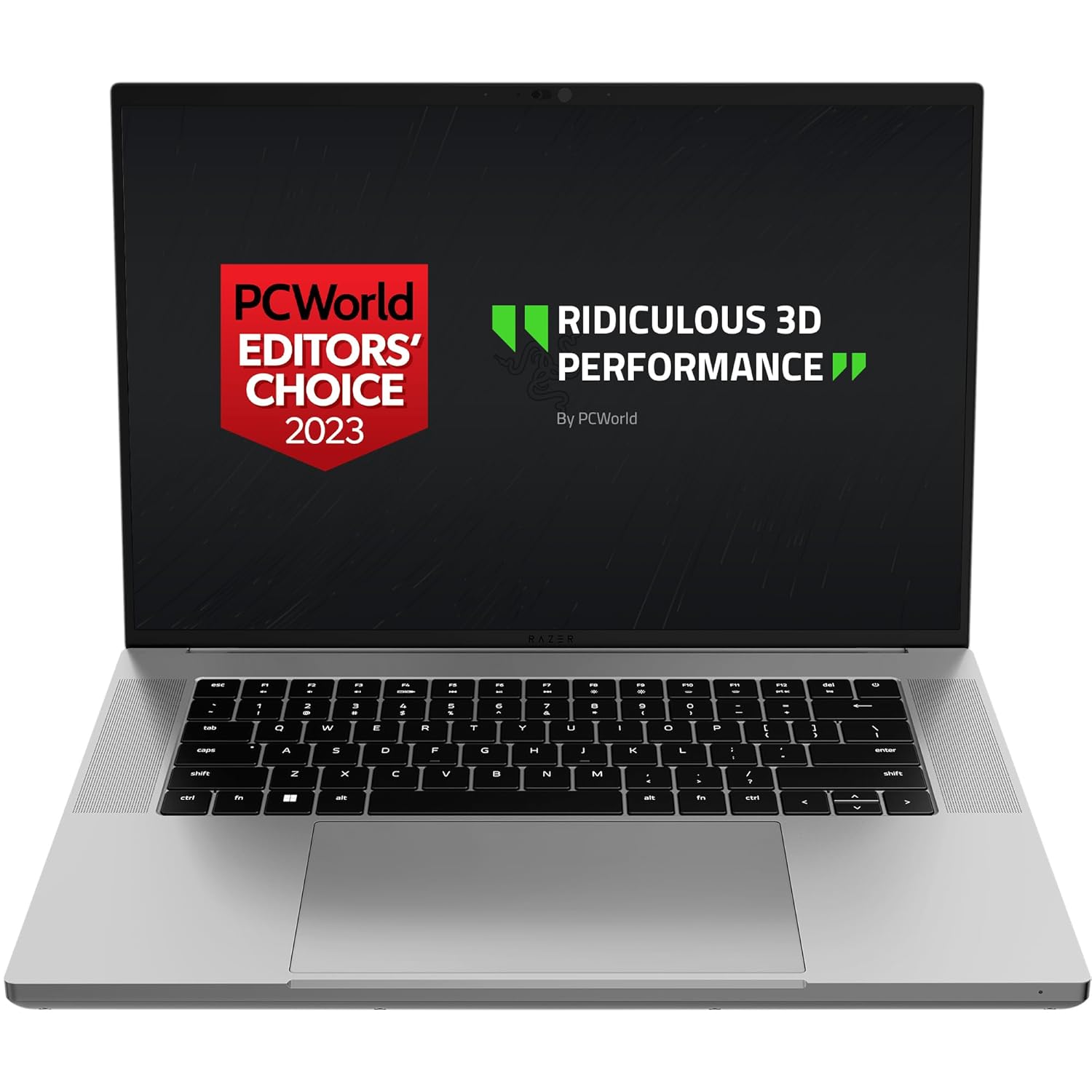
Razer Blade 16
Best portable laptop with RTX 5090 power
The Razer Blade 16 packs RTX 5090 performance into a portable chassis. The CNC aluminum unibody construction feels premium, and the vapor chamber cooling manages thermal output during intense workloads.
This targets professionals who need GPU power while traveling. The compact form factor works in coffee shops and client meetings, though the loud fans under load give away the performance focus. Premium pricing reflects the build quality and portability.
Best For
- • Traveling professionals
- • Portable GPU workflows
- • Business + ML hybrid use
- • Premium laptop seekers
Key Specs
- • Intel Core i9-14900HX
- • RTX 5090 16GB GPU
- • 32GB DDR5 RAM
- • 16" QHD+ 240Hz display
Pros
- • RTX 5090 in portable form
- • Best-in-class build quality
- • Excellent thermal design
- • Professional aesthetic
Cons
- • Very expensive at ₹2,69,990
- • Non-upgradeable RAM
- • Loud fans under load
MSI Raider A18 HX
Best desktop replacement with maximum performance
The MSI Raider A18 HX embraces desktop replacement territory. With RTX 5090, 24GB VRAM, and up to 128GB RAM, this matches workstation performance. The 17" display provides screen real estate for multitasking.
This machine rarely leaves the desk - the 3kg weight and massive 400W adapter limit portability. For users who need desktop power but want some mobility, the Raider A18 delivers. Gaming aesthetic stands out in professional settings.
Best For
- • Desktop replacement seekers
- • Maximum performance users
- • Home-based ML work
- • Large model training
Key Specs
- • Intel Core i9-14900HX
- • RTX 5090 24GB GPU
- • 64GB DDR5 RAM
- • 17" QHD 240Hz display
Pros
- • Desktop-class performance
- • 24GB VRAM for large models
- • Upgradeable to 128GB RAM
- • 17" screen for productivity
Cons
- • Very heavy at 3kg+
- • 400W adapter massive
- • Poor battery away from charger
ASUS ROG Zephyrus G14
Best portable GPU laptop with excellent balance
The ASUS ROG Zephyrus G14 achieves remarkable balance - RTX 5070 performance in a 14" chassis that weighs just 1.72kg. The OLED display looks fantastic for data work, and the minimalist design works in professional settings.
This laptop fills the gap between ultraportables and gaming machines. Battery life actually lasts 6-8 hours of real work, unlike most GPU laptops. The 12GB VRAM handles meaningful ML workloads while maintaining excellent portability.
Best For
- • Portable GPU workflows
- • Hybrid office/field work
- • Students and researchers
- • Balanced ML workloads
Key Specs
- • AMD Ryzen 9 8945HS
- • RTX 5070 12GB GPU
- • 32GB DDR5 RAM
- • 14" OLED 120Hz display
Pros
- • Best portable GPU laptop
- • Excellent OLED display
- • Lightweight at 1.72kg
- • Good battery life
Cons
- • Non-upgradeable RAM
- • Runs warm under load
- • Expensive at ₹1,79,990
What Changed in 2026
A few things keep showing up in conversations about AI hardware this year, including some newer concerns around agentic AI workflows:
RTX 50-series is worth the upgrade
When buying a GPU laptop, the new RTX 50-series cards perform noticeably faster for AI work. Better tensor cores and more VRAM make the upgrade worthwhile if the price difference is reasonable.
16GB RAM falls short in 2026
Between Windows 11, Chrome, and the AI tools running in the background, 16GB fills up fast. 32GB serves as the new minimum for avoiding constant tab closures.
MacBook and ThinkPad still dominate
When discussing laptops that last 5+ years, these two brands dominate the conversation. Gaming laptops list better specs on paper, but the build quality and support fall short.
M5 Max MacBook is portable power
For those who work from cafes and prioritize battery life, the M5 Max with 128GB RAM has no competition. Expensive, but unmatched in its category.
Agentic workflows need more RAM
Running multiple AI agents simultaneously? 32GB minimum, 64GB preferred. Each agent needs its own context in memory.
AI/ML Laptop Spec Tiers (2026)
Use this as your planning tool. Brand names change, but these constraints stay consistent year to year.
| Tier | Who It Fits | RAM | Storage | GPU |
|---|---|---|---|---|
| MINIMUM | Students, cloud-first beginners | 16-24 GB | 512 GB - 1 TB | Integrated or entry RTX if budget allows |
| RECOMMENDED | Most ML engineers, data scientists | 32 GB | 1 TB | Mid RTX for local tests or none for cloud-first |
| PRO | Local training, research, multi-project workflows | 64 GB+ | 2 TB+ | Higher-tier RTX with more VRAM, strong cooling |
Note: You can often "buy down" on GPU if your training runs in the cloud. Cloud-first workflows prioritize RAM, SSD and battery over peak GPU specs.
Cloud vs Local: What Makes Sense
Why Cloud Beats Buying a GPU Laptop
Most discussions miss this point: even users with expensive GPU laptops use cloud for heavy work. Training a modern LLM locally takes hours, and the laptop sounds like a jet engine the whole time. The community consensus: "You will use Kaggle or Colab anyway, why spend ₹2 lakh upfront?"
Cloud platforms give you access to A100s and H100s - GPUs that cost more than your entire laptop - and you only pay for what you use. No cooling problems, no noise, no wondering if your model will fit in VRAM. You spin up a Jupyter notebook, do your thing, and shut it down.
The math works out clearly: Colab Pro costs about ₹700-900/month, totaling ₹8,400-10,800 per year. Compare this to spending ₹2-3 lakh on a laptop worth half that amount in two years. For learning and experimentation, cloud computing proves more cost-effective.
Read more: Best cloud platforms for AI/ML in India - full comparison with pricing
The Cloud Platforms People Use
Colab and Kaggle dominate the conversation, yet a broader ecosystem exists. These platforms deserve attention:
Google Colab
Free tier with T4 GPUs, Pro gets you A100 access. Great for Jupyter workflows, ₹700-900/month in India.
Best for: Learning, experimentsKaggle
Free GPU/TPU access, integrated with competitions. Good for datasets and sharing notebooks.
Best for: Competitions, free accessGitHub Codespaces
VS Code in your browser with GPU options. Free hours monthly, integrates with your repos. Part of Student Developer Pack.
Best for: Dev workflows, studentsRunPod
Rent GPUs by the hour. Cheaper than Colab for sustained use, lots of GPU options including H100s.
Best for: Serious projects, cost controlVast.ai
GPU marketplace, often cheapest option. Rent from people with idle GPUs. Hit-or-miss quality but great prices.
Best for: Budget-conscious usersPaperspace/Gradient
Beginner-friendly cloud with good free tier. Clean UI, persistent storage, decent GPU options.
Best for: Beginners, persistenceIndia-specific: Colab and Kaggle work seamlessly with Indian payments. RunPod accepts cards though some users report transaction problems. Vast.ai delivers mixed experiences. GitHub Codespaces works smoothly for those already in the GitHub ecosystem.
Future-Proofing is Mostly a Myth
Hardware purchased today feels slow within 4-5 years. This pattern remains consistent across technology. Rather than attempting to future-proof with expensive hardware, choose something adequate for coding and use cloud resources when additional power becomes necessary.
When new GPUs launch, cloud providers add them immediately. Laptops cannot match this upgrade cycle. Rather than worrying whether RTX 5060 will suffice in 2028, focus on learning ML. Skills transfer across hardware generations; hardware does not.
Getting Started in India
Starting AI/ML requires no high-end laptop. Any computer with a browser can access Colab, Kaggle, or GitHub Codespaces for serious GPU power at minimal cost. Learning on a ₹40,000 laptop works well.
Kaggle provides free GPU/TPU time. Colab offers a solid free tier and Pro remains affordable even for students. GitHub Codespaces integrates with existing repositories. Compare this to spending ₹2-3 lakh upfront for a future-proof machine. For those starting out or managing a tight budget, cloud computing makes financial sense.
Agentic Workflows: What Changes When AI Agents Work Together
Agentic workflows explained: Rather than one AI handling everything, multiple specialized agents collaborate - one writes code, another reviews it, a third runs tests. All run simultaneously while coordinating through a central system. This approach gained traction in 2026 for applications ranging from coding assistants to research automation.
RAM Becomes Your Real Bottleneck
Running multiple agents simultaneously changes the requirements. Each agent requires its own context window in memory. Three agents with 8K context each consume 24K tokens in RAM before any actual work begins.
Community feedback is clear: "16GB dies the moment you run more than 2-3 agents". With 32GB, you can run 4-5 agents comfortably before things get choppy. For serious agentic workflows, 64GB is where you want to be.
Reality check: Building or using agentic AI systems requires 32GB RAM minimum, with 64GB preferred. 16GB no longer handles these workloads.
CPU Cores Matter More Now
More agents means more concurrent processes. Each agent operates as a separate process. The CPU must handle context switching between them without performance degradation.
For single-model workflows, 6-8 CPU cores were fine. With agents? "12+ cores is where it stops feeling laggy" according to people running local agent stacks. The coordinator agent especially benefits from having headroom to manage communications between satellite agents.
This setup does not require a Threadripper, yet shifts recommendations toward chips with more cores, such as Ryzen 9, Intel i9, or the higher-core M5 Max variants from Apple.
Local vs Cloud: The Hybrid Approach
Agentic workflows change the calculus on local vs cloud. Instead of running one big model locally, you might run a smaller coordinator agent locally and spin up cloud instances for heavy-lifting agents as needed.
An emerging community pattern: local coordinator plus cloud workers. The laptop runs a lightweight agent that determines tasks, then distributes work to cloud agents on RunPod or similar platforms. This combines local responsiveness with cloud computing power.
The tradeoff involves latency. Every cloud agent call adds round-trip delay. Some workflows handle this well, others find it unacceptable. Finding the right balance requires experimentation.
Thermal Management is Non-Negotiable
Agents run continuously rather than in bursts. Unlike interactive coding with idle time between prompts, agent workflows run at maximum capacity for hours. Gaming laptops with thin designs struggle under these sustained loads.
User reports confirm: "ASUS TUF throttles after 45 minutes of continuous agent runs" and "MacBook Pro maintains performance while gaming laptops downclock". Workstation-class thermal management delivers consistent results.
For agentic workflows as the primary use case, MacBook Pro and ThinkPad workstation laptops justify their higher prices through sustained performance capabilities. These machines handle continuous workloads rather than just short benchmark bursts.
Hardware Recommendations for Agentic Workloads
Building or using agent systems shifts hardware priorities:
Ideal Setup
- • 64GB RAM minimum
- • 12+ CPU cores
- • MacBook Pro M5 Max or ThinkPad/ThinkBook
- • Hybrid: local coordinator + cloud workers
Budget Alternative
- • 32GB RAM (upgradeable later)
- • Accept fewer concurrent agents
- • Gaming laptop with good thermals
- • More dependence on cloud agents
Agentic workflows are still emerging in 2026. These recommendations are based on early adopter experiences. Expect this space to evolve rapidly.
What Matters When Buying
Graphics Card
- RTX 50-series: Latest gen, best for AI
- VRAM: 8GB minimum, 12GB+ preferred
- Look for: RTX 5060, RTX 5070 Ti
- NVIDIA only: CUDA is non-negotiable
Memory
- 2026 minimum: 32GB to be comfortable
- Serious work: 64GB if you can afford it
- Big models: 96-128GB for 13B+ locally
- Upgradeability: Worth it
Processor
- Data prep: More cores helps here
- Compiling: Faster builds with more cores
- Options: Intel i7/i9, AMD Ryzen 7/9
- Sweet spot: 12+ cores for ML
Why GPU VRAM Matters So Much
VRAM determines the model size that runs locally. 8GB handles 7B models adequately. 12GB or more allows comfortable work with 13B models. Larger models require cloud computing or multiple GPUs regardless.
Community advice remains consistent: "Purchase an RTX 4060/4070 class GPU within budget and it performs well for several years". The RTX 50-series improves upon this, but only makes sense when the price difference is reasonable.
Note: For agentic workflows, VRAM matters less than system RAM since these workflows run multiple smaller models instead of one large model.
Why RAM Requirements Have Exploded
32GB serves as the new minimum. Agentic workflows, local LLMs, browser tabs, and IDEs consume memory rapidly. 16GB no longer handles serious AI work in 2026.
For agentic workflows specifically: each agent requires its own context in memory. Running 4-5 agents simultaneously with 8K context each loads 32-40K tokens before actual work begins. "16GB fails when running more than 2-3 agents".
For agentic AI workflows, 64GB RAM provides necessary capacity. For single-model workflows, 32GB performs well.
Common Traps When Buying AI Laptops
These mistakes can waste budget and slow your work months after purchase. Avoid them.
Avoid Buying Based on GPU Names Alone
Sustained power and cooling decide real training throughput. Look for VRAM and wattage class instead of just "RTX 5090" stickers.
Avoid Settling for 512GB SSD
Environments, datasets, and checkpoints accumulate faster than you think. 1TB NVMe is your realistic baseline for ML work.
Avoid Ignoring Soldered RAM
Memory limits usually arrive before CPU limits in real workflows. Upgradeable RAM extends laptop lifespan by years.
Check Port Selection Carefully
Dongle dependence adds friction when you connect monitors, external SSDs, and wired networking. Check for USB-C, HDMI, and Thunderbolt.
Prioritize Display Quality
Hours spent reading logs, plots, and code demand good displays. Poor displays cause eye strain and reduce productivity more than slightly slower specs.
Plan Your Training Approach Before Buying
Cloud-first workflows often make a balanced laptop more useful than a heavy GPU brick. Decide where compute happens first.
Start Learning Today
The best laptop for AI/ML is the one you already own. Use Colab or Kaggle for the heavy work, learn the fundamentals, and upgrade when you hit actual limits. Don't let hardware shopping slow your progress.
Updated May 2026
Frequently Asked Questions
Which laptop is best for AI/ML in India under ₹1.5 lakh?
The ASUS TUF A16 with RTX 5060 (₹1,14,990) offers the best value with dedicated CUDA GPU, 32GB RAM, and excellent thermal management. For a pure Windows option, the Lenovo ThinkBook P16 (₹94,990) provides AI-powered performance with upgradeable RAM.
Should I buy a laptop or desktop for AI/ML work?
Desktops offer significantly better value - 2-3x the performance for the same price, easy GPU upgrades, and superior cooling. Most AI/ML enthusiasts use desktops for heavy work and laptops for light development, relying on cloud platforms for training.
Is cloud computing better than buying a powerful laptop?
Yes, for most users. Community consensus:
How much RAM do I need for AI/ML in 2026?
32GB serves as the minimum for comfortable development in 2026, with 64GB strongly recommended. Community feedback:
Why is RTX 50-series considered essential for AI/ML work?
The RTX 50-series provides enhanced tensor cores and improved AI performance. VRAM capacity proves critical - 12GB or higher is recommended for running larger models locally, and NVIDIA CUDA support enables PyTorch and TensorFlow workflows.
Are MacBooks good for AI/ML development?
MacBooks with M5 Max chips and 32GB+ unified memory are excellent for portability and battery life. However, they lack CUDA support. Community endorsement:
Can I learn AI/ML on a budget laptop in India?
Start with Google Colab free tier or Kaggle GPU/TPU access. A budget laptop (₹40-60K) with 16GB RAM and cloud computing access costs less than spending ₹2-3 lakh on a dedicated machine.